Overview
Tracking cash in PocketGuard helps you manage money that isn’t linked to a bank account. You can create cash accounts, add transactions, transfer funds, and automate recurring entries all in one place.
This guide shows you exactly how to track cash in PocketGuard step by step, so you can stay in control of your budget and avoid missing expenses.
Quick Answer
To track cash in PocketGuard:
- Go to Accounts and create a cash account
- Add transactions manually from the Transactions tab
- Assign each transaction to your cash account
- Monitor your balance in real time
What Is Cash Tracking in PocketGuard?
Cash tracking in PocketGuard allows you to manually manage spending that isn’t connected to a bank account.
This is especially useful if:
- Your bank is not supported
- Your account connection is broken
- You use physical cash regularly
- You prefer manual budgeting
How Do I Manage Multiple Cash Accounts in PocketGuard?
You can track physical cash by creating cash accounts in PocketGuard. With a Plus subscription, you can add up to 50 cash accounts to manage different sources of cash separately.
Please note that at least one cash account must remain active in your account, so it’s not possible to delete the only cash account you have.
How Do I Add a Cash Account in PocketGuard?
To create a cash account:
- Go to Accounts;
- Hit + in the upper right corner;
- Select Create cash account;
- Choose the type of account (Debit or Credit);
- Fill in the account info:
- Account name
- Current balance
- Minimum payment (for the Credit account)
- Annual percentage rate (for the Credit account)
- Hit Save.
How Do I Add a Cash Transaction in PocketGuard?
- Tap the “+” icon on the Transactions tab;
- Choose the transaction type (expense or income);
- Fill in the transaction info:
- Amount (required)
- Merchant (required)
- Category (required)
- Date (required)
- Note (optional)
- Choose a cash account to which you’d like to assign a cash transaction;
- Hit Save.
Each transaction counts into your cash account balance right away.
How Do I Edit or Delete a Cash Transaction?
To edit:
- Open the transaction
- Tap the field you want to change (merchant, category, etc.)
To delete:
- Open the transaction
- Scroll down
- Tap Delete transaction
How Do ATM Withdrawals Work in PocketGuard?
When you withdraw cash from an ATM:
- Go to the Transactions tab
- Tap the banner “Add to the cash balance”
- Select a cash account
PocketGuard automatically avoids double-counting, so your balance stays accurate.
How Do I Transfer Money Between Cash Accounts?
To transfer cash:
- Tap the + icon in Transactions
- Select Add cash transfer
- Choose:
- Account to transfer FROM
- Account to transfer TO
- Enter amount
- Tap Continue → Transfer money
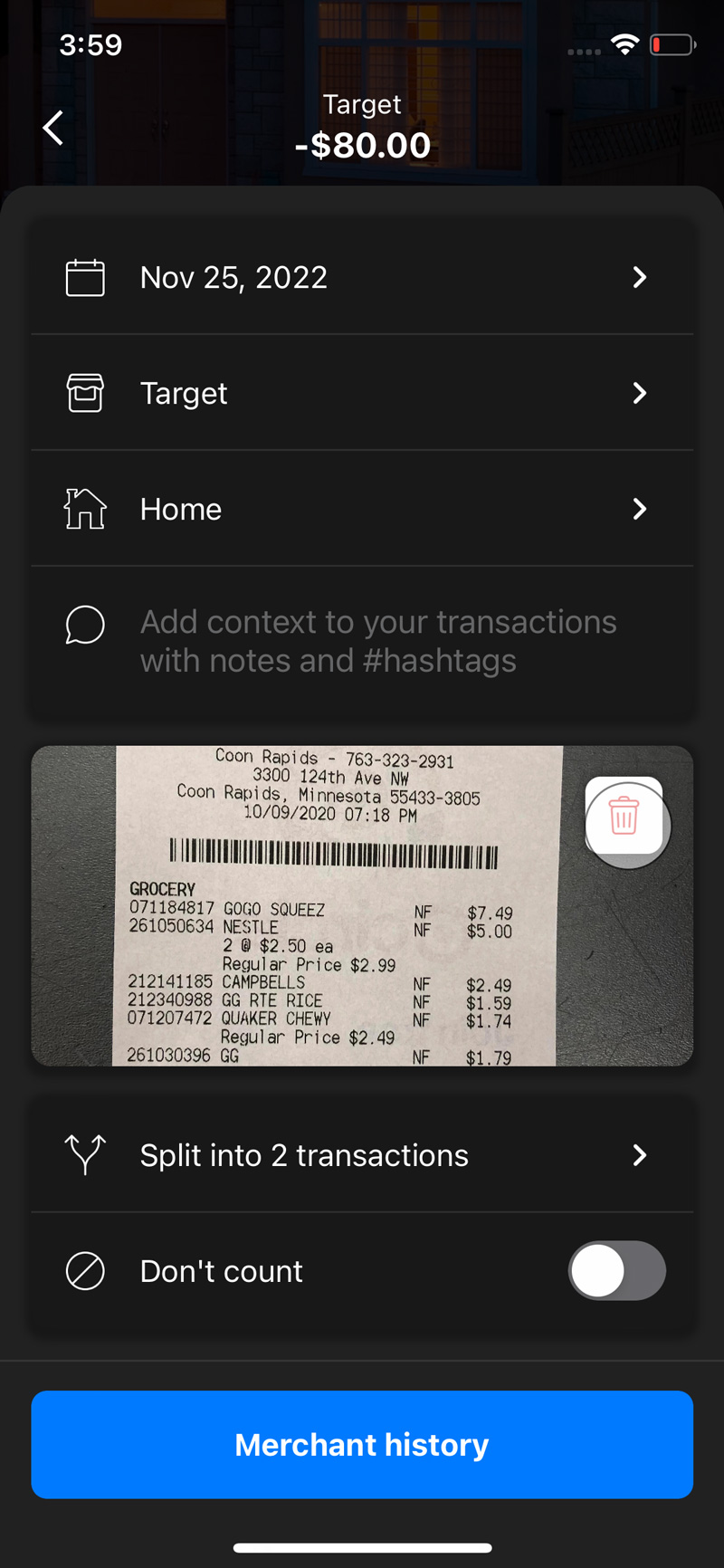
How Do I Attach Receipts to Transactions?
To add a receipt:
- Open a transaction
- Scroll down
- Tap Upload image
- Choose or take a photo
To delete a receipt:
- Tap the Trash icon on the image preview
How Do I Automate Cash Tracking in PocketGuard?
You can automate recurring bills and income.
To add auto-repeat bills:
- Go to Upcoming bills
- Tap + → Add a bill manually
- Toggle Auto-repeat ON
- Enter details
- Tap Save
To add auto-repeat income:
- Go to Next Paycheck
- Tap + → Add income manually
- Toggle Auto-repeat ON
- Enter details
- Tap Save
When Should You Use Cash Tracking?
Cash tracking is helpful when:
- You want to track physical cash spending
- Your bank isn’t supported
- You need better control over your budget
- You want to avoid missing small expenses
Frequently asked questions
Can I have multiple cash accounts?
Yes, Plus users can create up to 50 cash accounts.
Will ATM withdrawals be double-counted?
No, ATM withdrawals added to a cash account are excluded from duplicate calculations.
How do I attach receipts to cash transactions?
Tap a transaction → Upload image → Select a photo or take a picture.