How to Cancel Amazon Subscriptions: Step-by-Step Guide for Prime, Channels, and App Subscriptions
You are not alone if you wish to cancel Amazon subscriptions and also want to get rid of those unnecessary recurring charges. Over the years, millions of folks signing up for such Amazon services — Prime, Subscribe & Save, Prime Video Channels, and Audible — forget what is enabled. This step-by-step guide explains every available type of subscription offered by Amazon, how to find them, and precisely how to cancel each one before they automatically debit your account on the next billing date.
Table of Contents
Key Takeaways
- Amazon subscriptions are scattered across multiple management pages — Prime, Subscribe & Save, Channels, and third-party apps each have their own cancellation flow
- Cancel before the renewal date to avoid being billed for another cycle — most Amazon subscriptions don’t offer refunds after the billing date
- Subscriptions started on iPhone or Android may be billed through Apple or Google, not Amazon — check both platforms
- Subscribe & Save items must be canceled individually — there’s no single “cancel all” option
- Amazon Prime refunds are only available within 3 days of the charge and only if you haven’t used Prime benefits
- Tracking tools like PocketGuard can surface forgotten Amazon charges and make it easier to manage recurring expenses across all your accounts
How to Find All Your Amazon Subscriptions
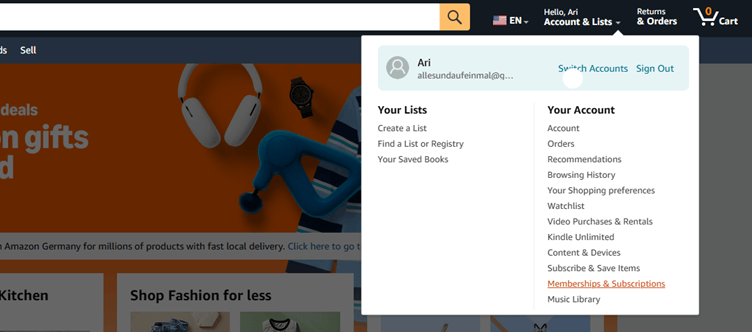
Most of your active subscriptions live in one place: Account & Lists → Memberships & Subscriptions.
Take control of your money, optimize your spending and grow your savings automatically


Where to locate subscriptions in your Amazon account
From there, you can see Prime, Prime Video Channels, Amazon Music Unlimited, Kindle Unlimited, and Audible. Subscribe & Save orders are managed separately under Account → Subscribe & Save.
To access this on desktop, go to amazon.com, hover over your account name in the top-right corner, and select Memberships & Subscriptions. On the Amazon mobile app, tap the three-line menu (bottom right), scroll to Your Account, and look for Memberships & Subscriptions.
How to identify hidden or inactive subscriptions
Some subscriptions are easy to miss — especially those billed through Amazon Pay or third-party apps. To find them, check your recent bank or credit card statements for Amazon charges you don’t recognize. Then cross-reference with:
- Memberships & Subscriptions page in your account
- Manage Your Content and Devices (for Kindle-related charges)
- Digital Orders history under Returns & Orders
Inactive subscriptions with a future renewal date may also appear here. If you see a charge you don’t recognize, check whether a free trial converted to a paid plan without a clear reminder.
Checking subscriptions across devices and apps
Some subscriptions started on your phone — via the Apple App Store or Google Play — are billed through those platforms, not directly through Amazon. If you signed up for a Prime Video Channel or Amazon app on an iPhone, your subscription may be under Apple’s Manage Subscriptions menu, not Amazon’s. The same applies to Android users. Always check all three places: Amazon’s website, Apple’s subscription settings, and Google Play’s subscription center.
How to Cancel Amazon Subscriptions Step-by-Step
Both methods work, but the browser version of Amazon gives you more control and visibility.
Canceling via the Amazon app vs. the browser
On the app, some cancellation options require extra taps to find. For complex subscription types like Subscribe & Save, the desktop browser is easier. For straightforward cancellations like Prime or Channels, the app works fine.
Via browser:
- Go to amazon.com and sign in
- Hover over your name → Memberships & Subscriptions
- Select the subscription you want to cancel
- Click Manage subscription or Cancel
Via app:
- Open the Amazon app → tap the three-line menu
- Go to Your Account → Memberships & Subscriptions
- Select the subscription → tap Cancel
How to cancel Amazon Prime
Learning how to cancel Amazon Prime is straightforward, but Amazon does make you click through a few steps to confirm. Here’s how:
- Go to Account → Prime → Manage membership
- Click Update, cancel, and more
- Select End membership
- Choose between ending immediately or at the renewal date
- Confirm cancellation
If you’ve been charged recently (within 3 days and haven’t used Prime benefits), you may qualify for a full refund. After that window, Amazon offers a prorated refund only if you haven’t used Prime benefits like free shipping or Prime Video.
How to cancel Subscribe & Save deliveries
To cancel Subscribe & Save on Amazon, go to your account and follow these steps:
- Go to Account → Subscribe & Save
- You’ll see a list of all active subscriptions
- Click the item you want to cancel
- Select Cancel subscription under that item
You can also pause deliveries temporarily or skip the next shipment without fully canceling. If you want to cancel Subscribe & Save Amazon-wide across all items, you’ll need to cancel each product individually — there’s no single “cancel all” button.
How to cancel Prime Video Channels
How to cancel Prime Video Channels (like Paramount+, Showtime, or HBO via Amazon):
- Go to primevideo.com → click your profile icon → Memberships & Subscriptions
- Find the Channel you want to remove
- Click Cancel Channel
- Confirm the cancellation
You keep access until the end of the current billing period. Channels billed through Apple or Google are not managed here — see the FAQ below.
How to Cancel Kindle Unlimited
- Go to Amazon → Account → Memberships & Subscriptions → Kindle Unlimited
- Click Manage Membership
- Select Cancel Kindle Unlimited
- Confirm
Your borrowed titles remain accessible until the end of the billing period, then you lose access.
How to Cancel Audible
- Go to audible.com → Account Details → Cancel membership
- Amazon may offer a pause option (3 months) before cancellation
- If you still want to cancel, select Continue to cancel
- Confirm
Any credits in your account expire at cancellation. Books you’ve purchased remain in your library permanently.
How to Cancel Amazon Music Unlimited
- Go to amazon.com → Account → Memberships & Subscriptions
- Find Amazon Music Unlimited
- Click Manage subscription → Cancel subscription
- Confirm
Your offline downloads are removed at the end of the billing cycle.
How to cancel third-party subscriptions billed via Amazon
Some apps and services use Amazon Pay as their payment processor. These are not always visible under Memberships & Subscriptions. To find and cancel them:
- Go to Amazon → Account → Login with Amazon or Amazon Pay
- Go to amazon.com/pay → Manage payment agreements
- Find the third-party agreement and select Cancel
If you signed up for a service through a link from Amazon, check the service provider’s own website to confirm cancellation — Amazon Pay processes the billing, but the service controls the subscription.
What Happens After You Cancel
Refunds depend on the type of subscription and how recently you were charged:
| Subscription | Refund Policy |
| Amazon Prime | Full refund within 3 days if benefits unused; prorated otherwise |
| Prime Video Channels | No refund — access continues until period ends |
| Subscribe & Save | No charge until next shipment; cancel before processing date |
| Kindle Unlimited | No refund — access continues until period ends |
| Audible | Credits expire; no monetary refund on unused credits |
| Amazon Music Unlimited | No refund — access continues until period ends |
Always cancel a few days before your renewal date to avoid being charged for another cycle. Amazon sends renewal reminders, but you can also check your billing date inside each subscription’s management page.
How to Avoid Unwanted Amazon Charges
Unwanted recurring charges are one of the most common variable expenses people overlook — they feel small month to month, but add up fast. A few habits that help:
- Set Calendar Reminders Before Free Trials End
Amazon’s free trial periods (typically 30 days) convert to paid plans automatically unless you cancel beforehand.
- Review Your Statements Monthly
Look for Amazon charges beyond your main Prime fee. Each Channel, app subscription, or Subscribe & Save order appears as a separate line item.
- Use a Subscription Tracker
Apps like PocketGuard let you see all your recurring charges in one place through the cancel subscriptions feature. It connects to your bank and card accounts, highlights subscriptions automatically, and makes it much easier to spot charges you’ve forgotten about. According to a 2024 survey by C+R Research, the average American spends $91 more per month on subscriptions than they estimate — tracking them directly helps close that gap.
Read the fine print on Amazon bundles. Some Prime benefits come bundled (like Prime Reading or Prime Gaming), while others are add-ons with separate billing. If you’re not using a particular add-on, canceling it doesn’t affect your core Prime membership.
For a broader guide on managing recurring payments across services, check out this overview on how to cancel subscriptions that covers platforms beyond Amazon.
Amazon Subscription Cancellation FAQ
Why am I still being charged after canceling?
This is often the result of one of two things. For starters, you canceled a subscription with Amazon; nevertheless, you still have an active billing settlement on Apple or Google Play, as these require a separate cancellation. Secondly, if you requested to cancel after your billing date, they have already charged for the ongoing cycle.
Can I cancel an Amazon subscription that’s billed through Apple or Google?
Yes, but you must do it through the platform that’s billing you — not Amazon. On iPhone, go to Settings → your name → Subscriptions and cancel from there. On Android, open the Google Play Store → Profile → Payments & subscriptions → Subscriptions. Amazon has no ability to cancel subscriptions billed through third-party app stores.
Can I get a refund if I forgot to cancel an Amazon subscription?
Amazon handles refund requests case by case. If you were charged for Prime and haven’t used any Prime benefits, you can request a refund within 3 days through Account → Prime → Manage membership. For other subscriptions like Channels or Kindle Unlimited, you can contact Amazon customer support directly and explain the situation.

Take control of your money, optimize your spending and grow your savings automatically